AppWork’s Summer Release: Updates across work orders, inspections and analytics


Summer didn’t slow us down. This release gives your Work Orders deadlines, adds a pie chart that finally tells you where all those Work Orders are coming from and more! Here’s what we’ve released:
Work Orders
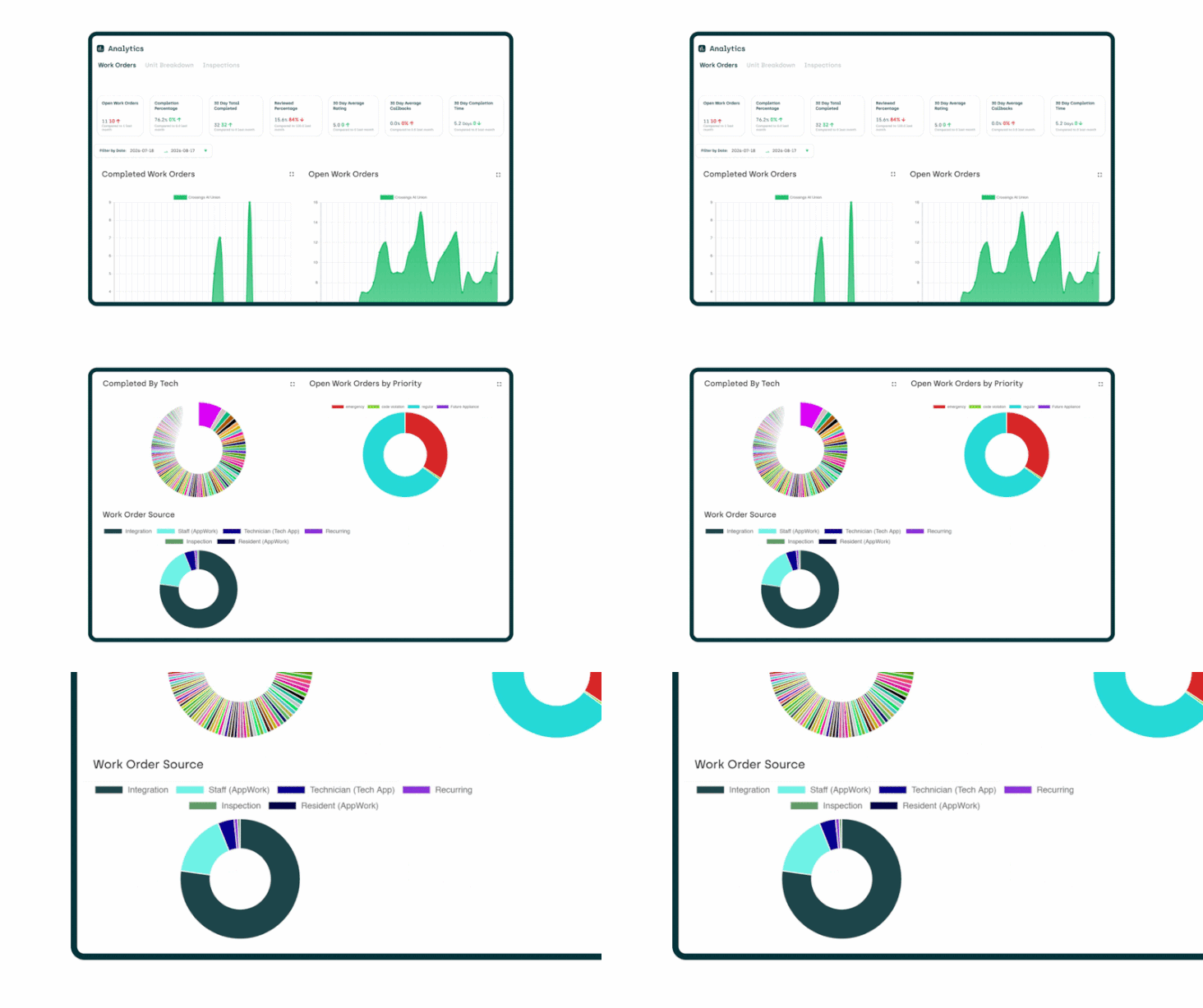
Due dates: because "whenever" was never a strategy. Some Work Orders can wait. Some absolutely cannot. You can now add due dates to Work Orders, so the urgent stuff stops hiding behind the routine stuff and your team knows exactly when it needs to get done by.
To turn it on: Settings > System Settings > Maintenance > Work Orders > Add Due Dates To Work Orders.
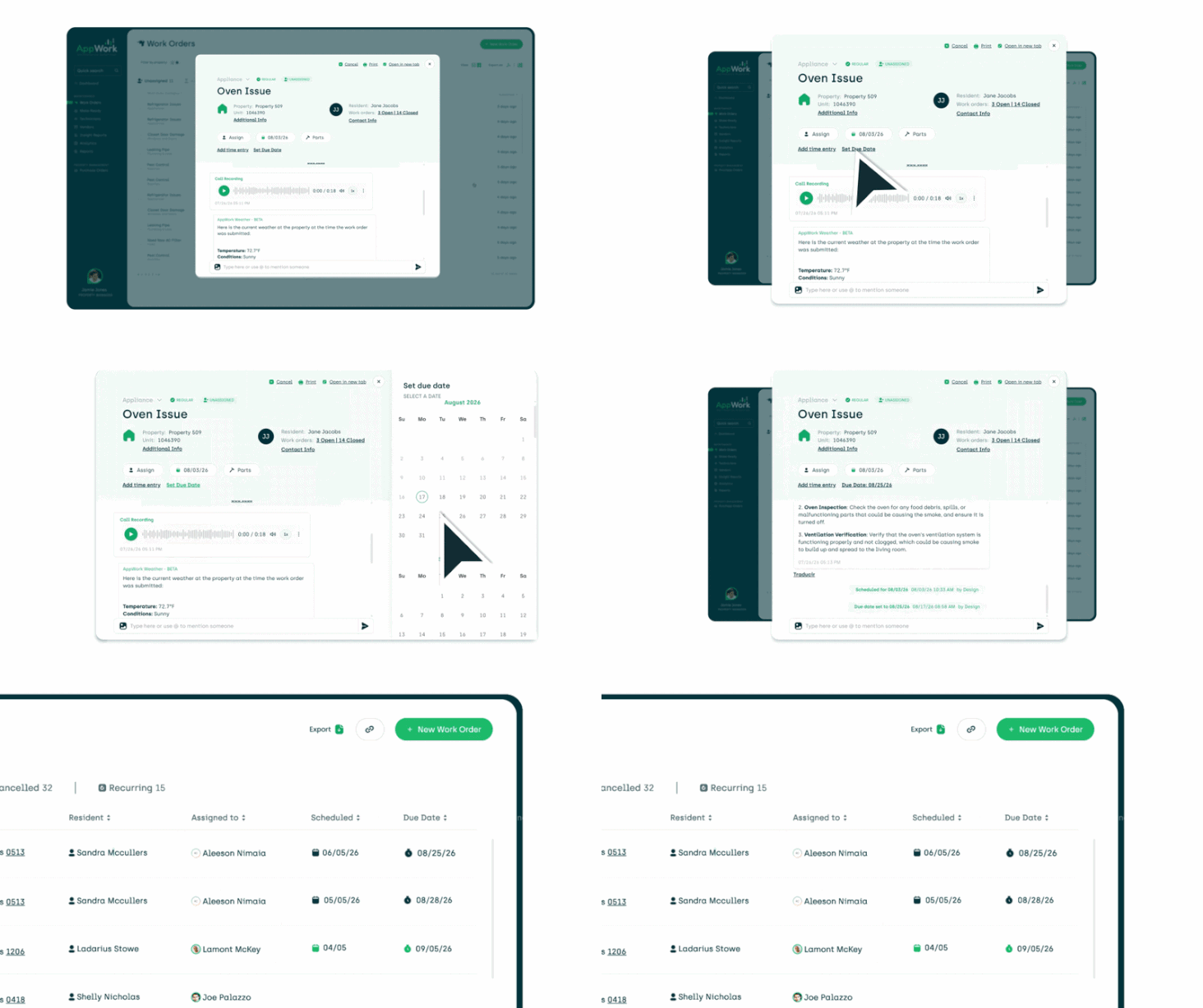
Work order sources. The new Work Order Source chart in Analytics shows where your Work Orders are being submitted from: the AppWork Admin Portal, technicians, your Property Management System (PMS), inspections, recurring Work Orders, residents submitting in AppWork, or the API.
Now you know.
To view it: Analytics > Work Orders > scroll to Work Order Source.
Pro tip: Widen the date range to see data from a longer period of time.
Inspections
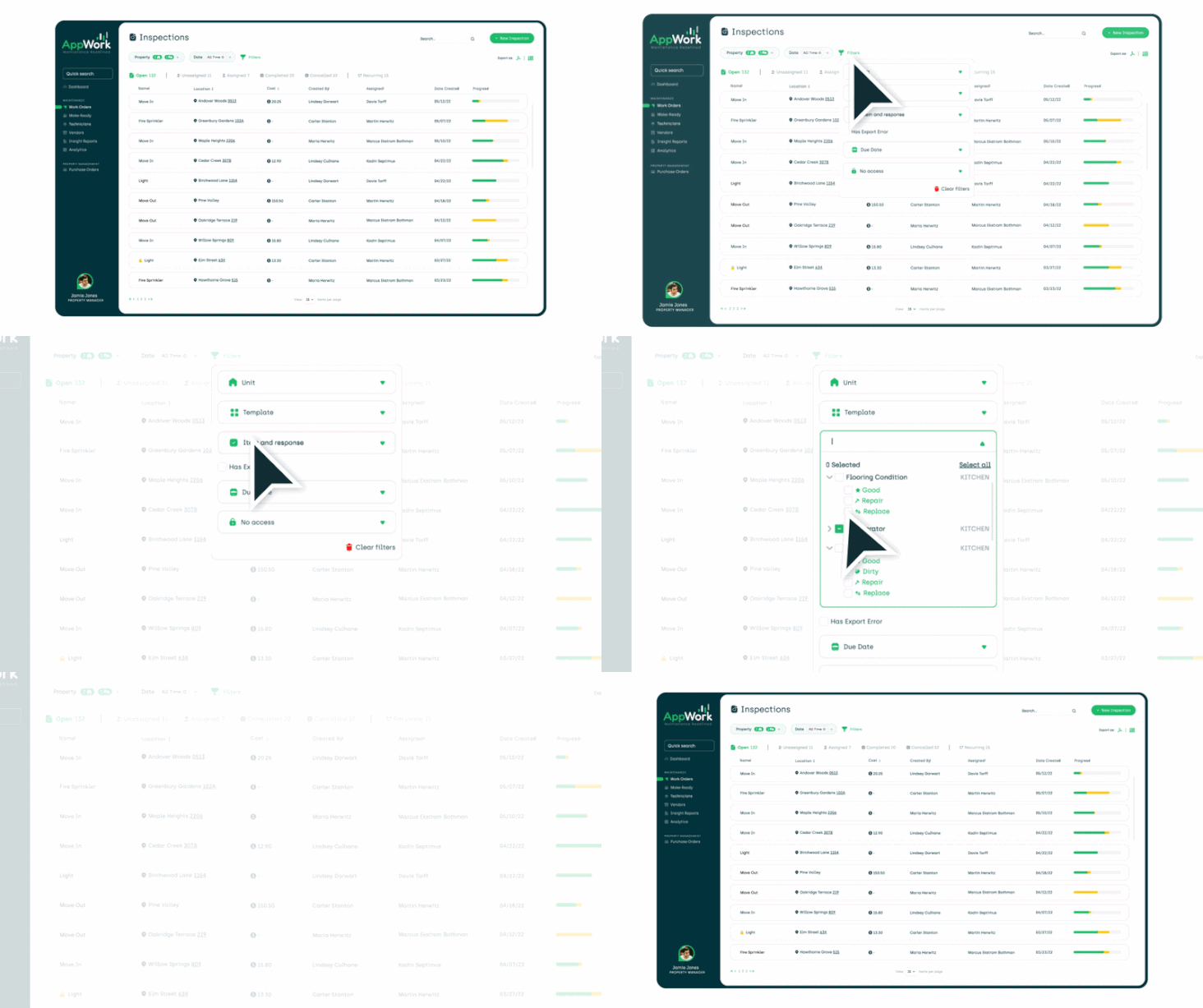
Ask your inspections pointed questions. You can now filter the inspection page by item and response. Every unit with flooring that needs replacing? Every expired fire extinguisher on the property? One filter, straight answer. No more scrolling through completed inspections hoping to spot the pattern and find what you're looking for.
To use it: Inspections > Filters > Item and Response.

Disclaimers that follow the inspection everywhere. Inspection templates can now carry a disclaimer message. It shows up on the inspection itself, on the PDF export, and on resident approvals, both before and after the resident approves.
To enable it: Settings > System Settings > Maintenance > Inspections > select your template > Settings > scroll to the new disclaimer text box.
Cost form tracking, now exportable. Completion tracking for inspection cost forms is now exportable from System Settings. Pull the export and see at a glance which cost forms are done and which properties are dragging their feet.
To export it: Settings > System Settings, then export from the inspection cost forms completion tracking section.
Admin & Access
SSO Only, now with a guest list. When enabled Single Sign-On (SSO) Only mode locks everyone into SSO. Great for security. Awkward for the one user who legitimately needs another way in like the ownership group you want to give AppWork access to.
You can now allow individual users to bypass SSO Only, without loosening the rules for everyone else.
To enable it: Open the user's admin profile and toggle the SSO Only bypass option.
API Updates
UDF Posting You can now POST user-defined fields (UDFs) to the AppWork API. Push custom field data into AppWork programmatically.