Plan Smarter With Monthly Capacity and Task Limits


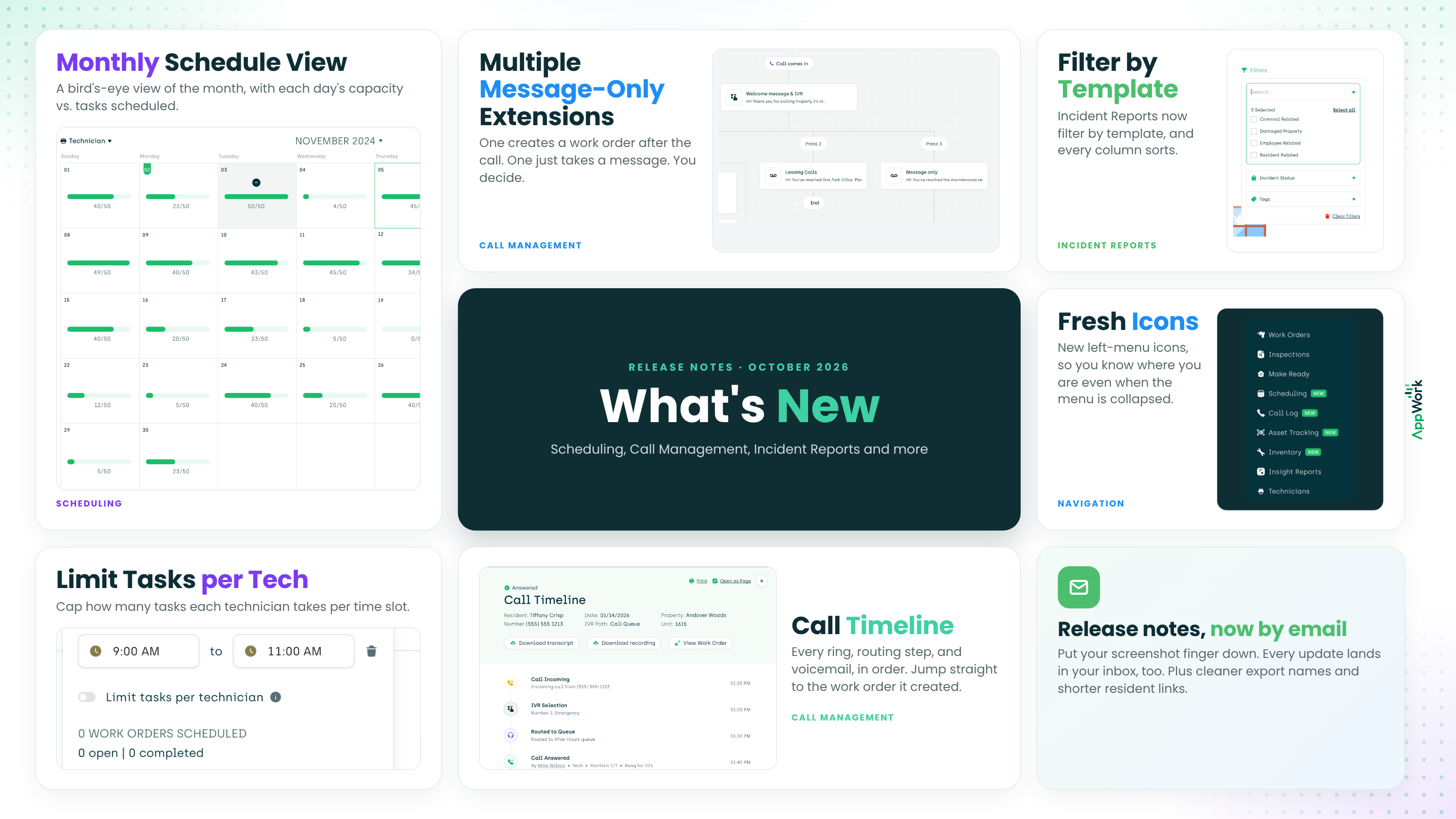
We know, we know. We just gave you the Daily Schedule earlier this week and here we are again with more updates. Turns out when you release features several times a week, the release notes pile up fast.
This is an update for anyone who has ever stared at a day full of work orders and wondered whether the team can actually get to all of them. You can now cap how many tasks each technician takes per time slot, then zoom out to a monthly view and see exactly how much room you have left on any given day.
Call Management gets the flexibility you asked for, with message-only extensions that can behave differently depending on who’s calling and why. And because we can’t help ourselves, we also cleaned up export file names, shortened the links residents get by text, and gave the left menu a fresh set of icons.
One more thing. We noticed a lot of you were screenshotting these popups to read later. Message received. Starting with this release, every product update also lands in your inbox, so you can close the popup and get on with your day. Read on for the details.
Scheduling
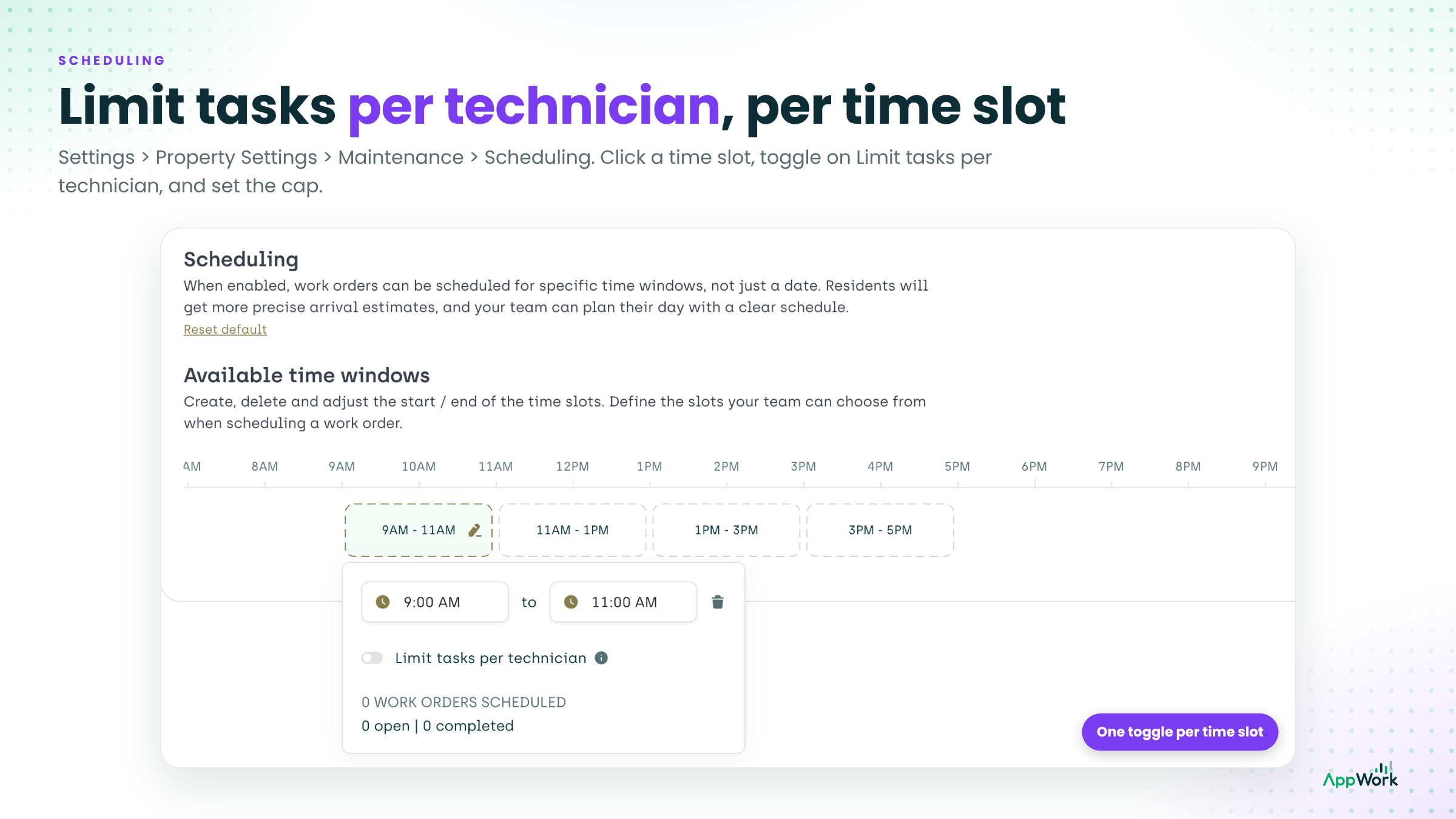
Tasks Per Time Slot Limits You can now set the number of work orders that could be assigned per time slot to technicians. This will help you understand your team's capacity and which work orders could be scheduled for when.
To set it up, navigate to settings > property settings > maintenance > scheduling > click on a time slot and toggle on “limit tasks per technician” for that time slot. From there, you can set how many tasks to allow to be assigned to them for each time slot.
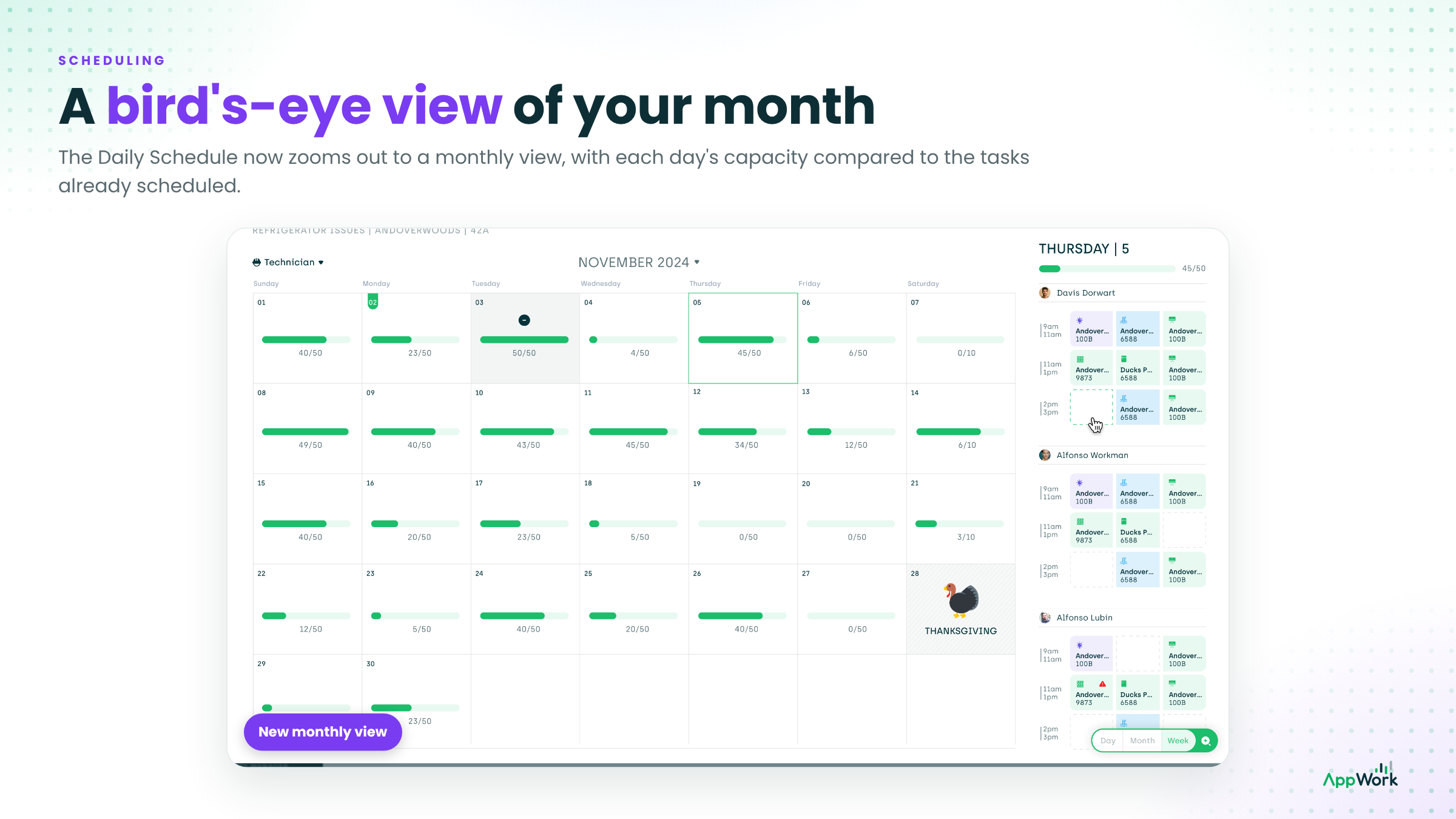
Monthly Schedule View Remember the daily schedule we released earlier in the week? Well… you can now view it as a monthly schedule giving you a birds eye view of the scheduled tasks you have for the month.
If you’ve enabled the tasks per time slots settings mentioned above, you can also see the daily capacity for your team on each day of the month compared to the number of tasks scheduled.
For example, if the total daily capacity of your team based on the time slots and tasks per time slot is 50 and there are only 22 tasks scheduled for the day, you’ll be able to see that you have almost 50 % capacity. However, if each day of the month you are at 50/50 we know that the team is at 100% capacity.
Daily Schedule Updates We made a bunch of updates to the daily schedule including the addition of a new dotted line that runs through the current day so you can easily see how the day is progressing.
Call Management
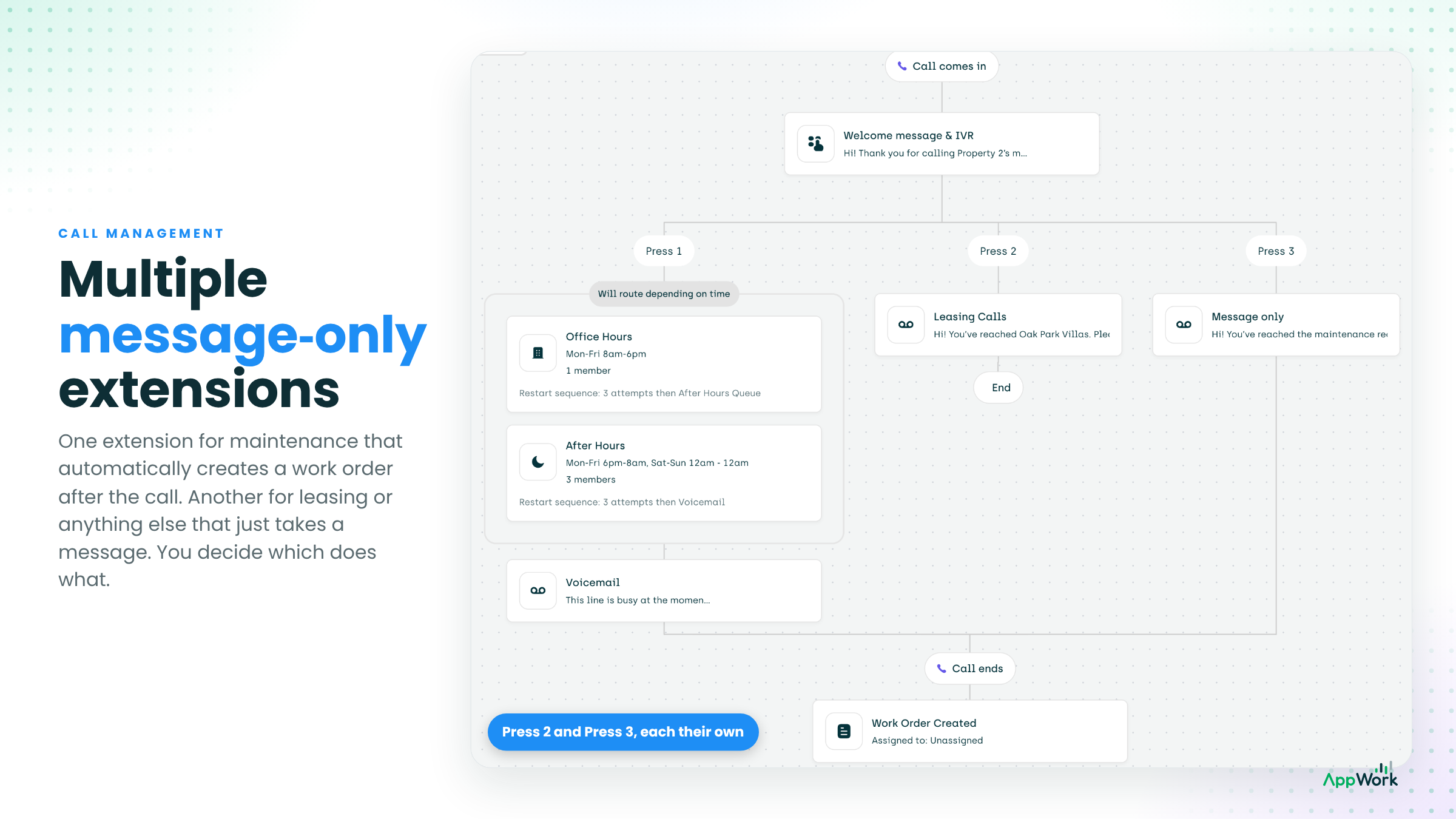
Multiple Message Only Extensions Those of you who wanted more flexibility with our Call Management system got what you asked for! You can now create multiple message only extensions which means you can have one message only extension for work orders that will automatically create a work order after and another message only extension for leasing or other calls that won’t create a work order after!
Incident Reports
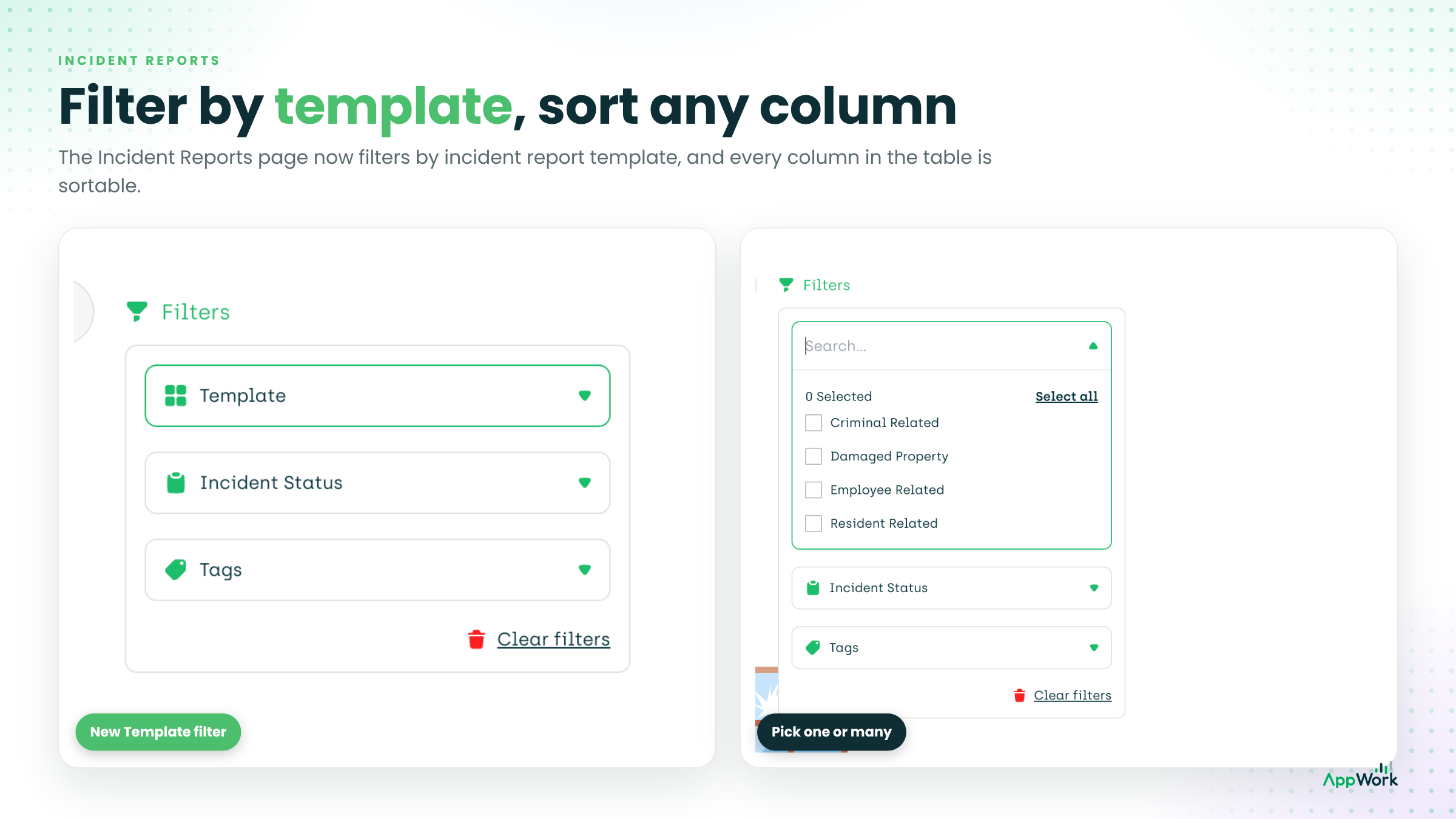
Filter by Template You can now filter the incident report page based on the incident report template
Sortable Columns The columns on the incident report are now sortable
Miscellaneous but still worth mentioning
Clearer Export File Names We’ve updated the naming convention for exported files across AppWork for better visibility. When you export something you’ll know what it is by looking at the name of the export. We know how the little things in life make the biggest differences :)
Shorter Resident Text Links AppWork used to send a lot of long URLs in the text messages we send to residents. Now we released a new URL shortening system to make the URLs look a little better - hopefully it will lead to more clicks and resident ratings!
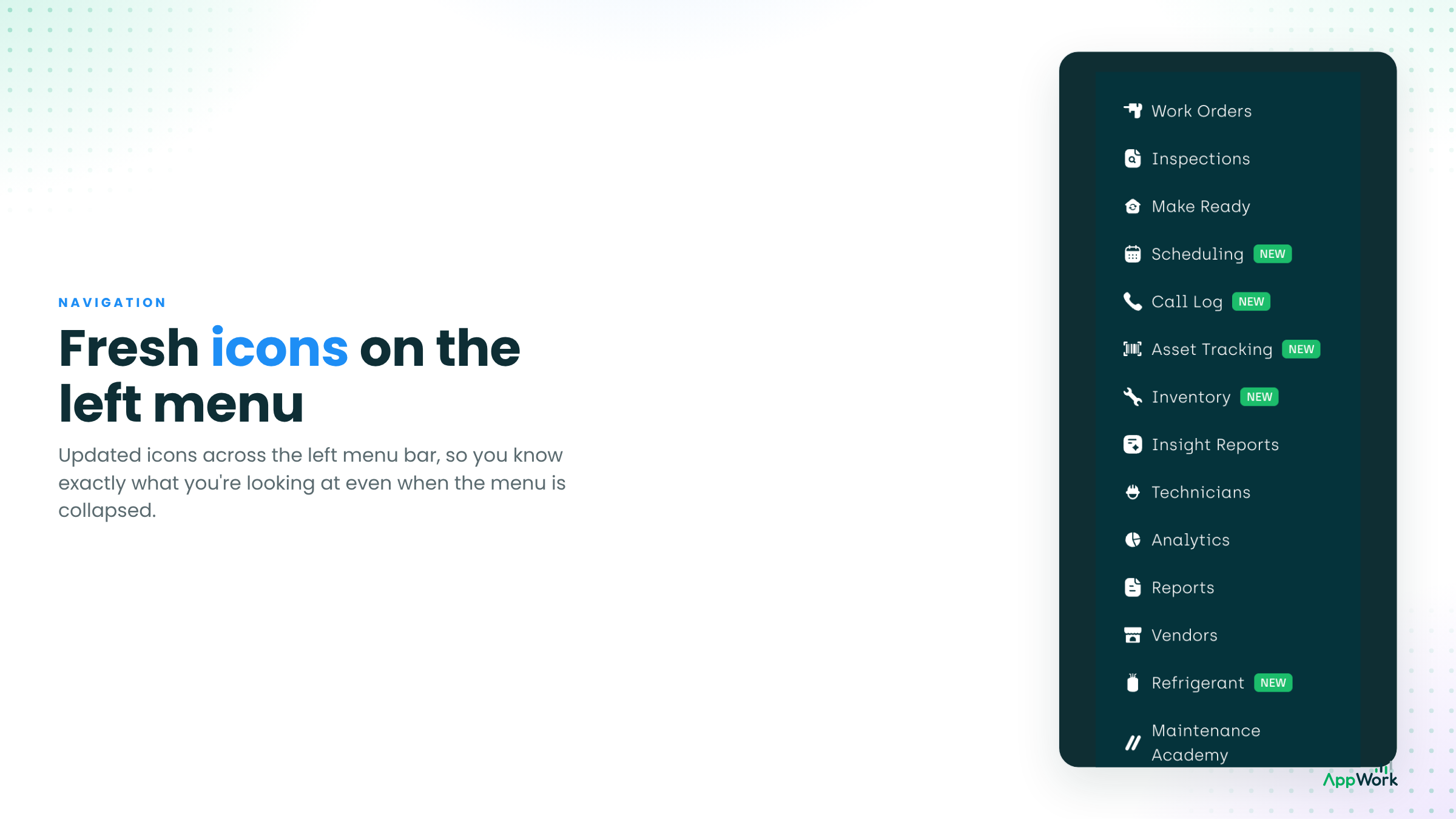
Updated Left Menu Icons The icons on the left menu bar have been updated making it easier than ever to know what you are looking at while the menu is collapsed
Release Notes by Email Release notes now come to your inbox, too. We found out that way too many of you were taking screenshots of these popups to read later, so starting now you’ll get every product update as an email as well. Put your screenshot finger down. We’ve got you.