New Scheduling Page and Call Timeline in AppWork


For as long as maintenance has been managed in software, the software has been organized around tasks. A list of Work Orders. A board of Make Readies. A queue of inspections. Useful, all of it. But none of it answers the question a maintenance supervisor actually asks at 7:45 every morning: what are each of my people doing today, and when?
Scheduling is AppWork’s answer. It is a new page in the left nav bar and it changes the unit of work from the task to the day.
Scheduling
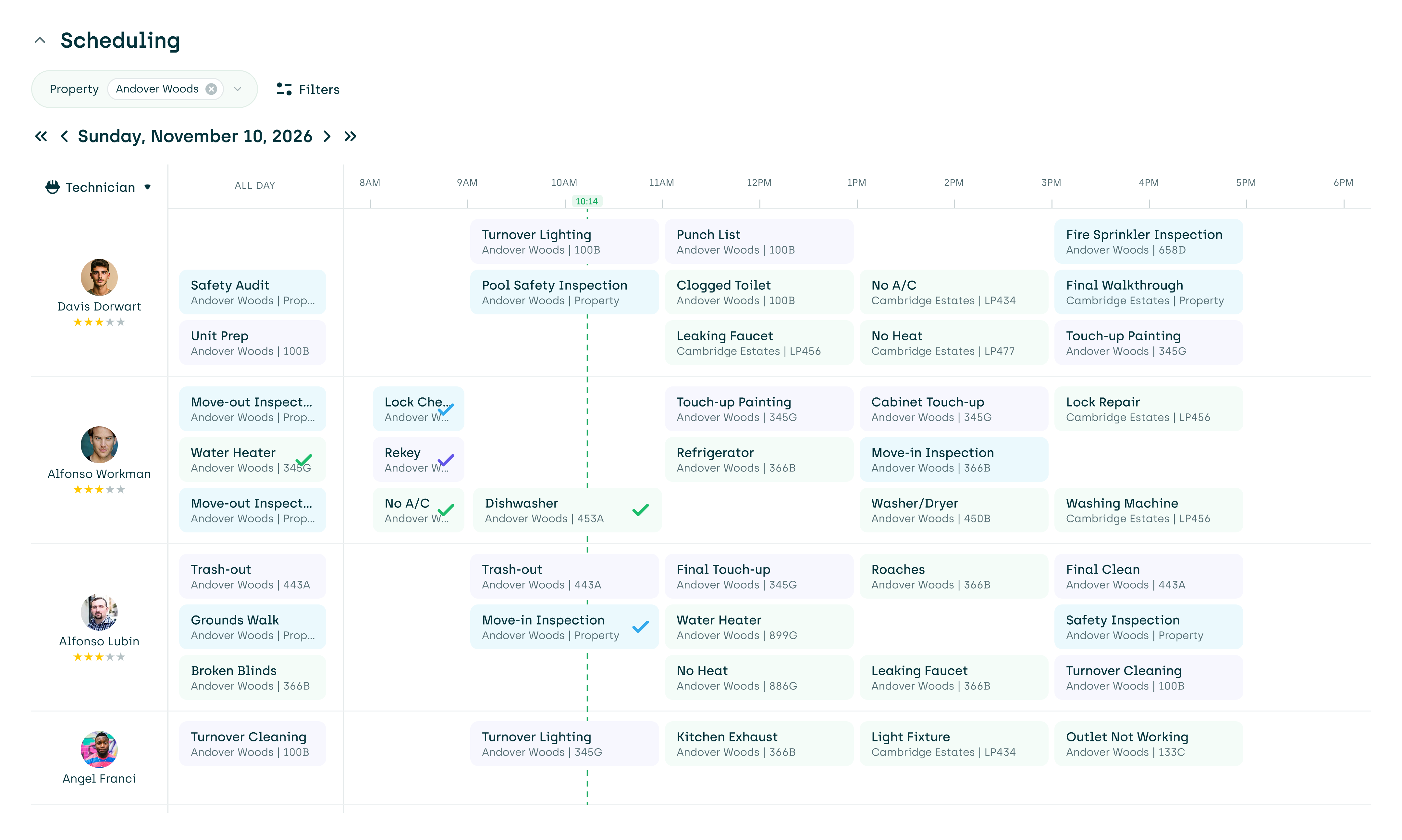
The Technician Daily view Pick a property. Pick a day. Your technicians run down the side and your time slots run across the top. Every Work Order task and every Make Ready task assigned and scheduled for that day sits in the exact cell where that tech will be doing it. Who is buried, who has an open afternoon, which slot is overloaded, which unit turn is sharing a window with an emergency call. All of it visible on one screen, before anyone picks up a radio.
This is the first time AppWork has put Work Orders and Make Readies on the same timeline. Until today, understanding a technician’s day meant reading two systems and doing the math in your head. Scheduling does the math.
Your slots, your properties The columns are built from each property’s Schedule Settings, so the grid reflects how the timeslots you set up. Tasks scheduled for the day but not to a specific window land in All Day, the first column. Switch properties and the grid rebuilds instantly with that property’s slots and that property’s team. Step a day back or forward, or jump to any date.
New ways to filter The Filters panel sits next to the property selector and introduces two new kinds of filters: Type, if you only want to see certain types of tasks like just work orders, or only make readies. Time Slot, if you want to filter the tasks to only see those that are scheduled for a certain time.
Small details that matter at scale A technician with nothing scheduled still gets a row, so an empty row means availability, not absence. The tasks in the schedule are clickable so you can dig in and move things around if needed.
Call Management
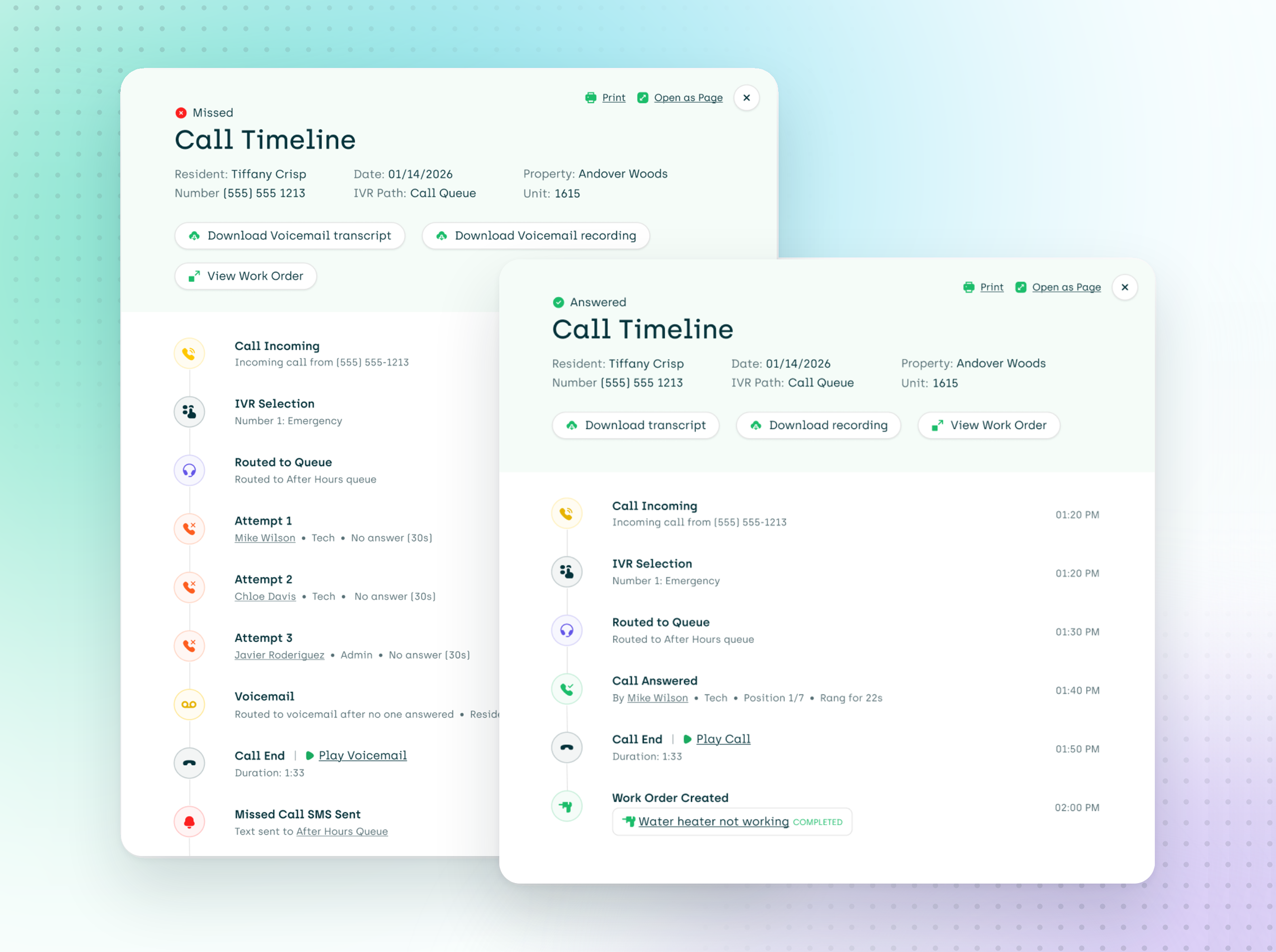
Call Timeline See the whole story. Click any incoming call in Call Log and a Call Timeline card opens with every step laid out in order: the resident calling in, the option they picked in the phone menu, which queue it routed to, every dial attempt and how long each one rang, who answered (or didn’t), the voicemail, the call end, the work order it created, and everything that happened after.
Position 2 didn’t pick up. Now it says so. Each dial attempt gets its own row with the team member’s name and role, their spot in the dial order, how long it rang, and how it ended (no answer, busy, voicemail machine, failed). Hover any attempt to see the exact number and extension that was dialed. “I never got the call” now has something to check it against.
Play, download, print, repeat. Play the recording right from the card, download the audio or the transcript, print the whole timeline as a clean PDF, or open the call in its own tab. Add a resident or unit to the call without leaving it. Previous and Next arrows walk you through the list one call at a time, so reviewing last night’s after-hours calls stops being click, close, scroll, click.
Inspections
Inspection Task Automations When setting up the inspection task automation to send to the Make Ready Board, you can now search for the column you want instead of scrolling the whole list. If your board has more columns than you can see at once, this one’s for you.
N/A, on autopilot Setting up an inspection response to automatically mark the Make Ready item as N/A is now easier. Set it once, and the items that don’t apply stop showing up asking to be dealt with.
Action items are orange now. They used to be yellow, which is a color that says “maybe look at this eventually.” Orange says “look at this.” Nothing else changed. Your eyes will just find the work faster.
--- That’s the release. Scheduling is live in the left nav right now, so pick a property, pick tomorrow, and see how the day looks before the day starts. Click into a call in Call Log while you’re at it and watch the whole thing unfold.
Almost everything in this release started as feedback from someone reading notes like these. If something here doesn’t work the way you expected, or you wish it did something else, tell us. We ship a few times a week, so there’s a decent chance you’ll see your idea in the next one.