Incident Report Permissions and Scheduling Updates


A quiet release. Approved incident reports can be locked. Tasks can be dragged around the week and the month. Roles come from a dropdown. Nothing here will change your life, but a few things will stop quietly bothering you.
Incident Reports
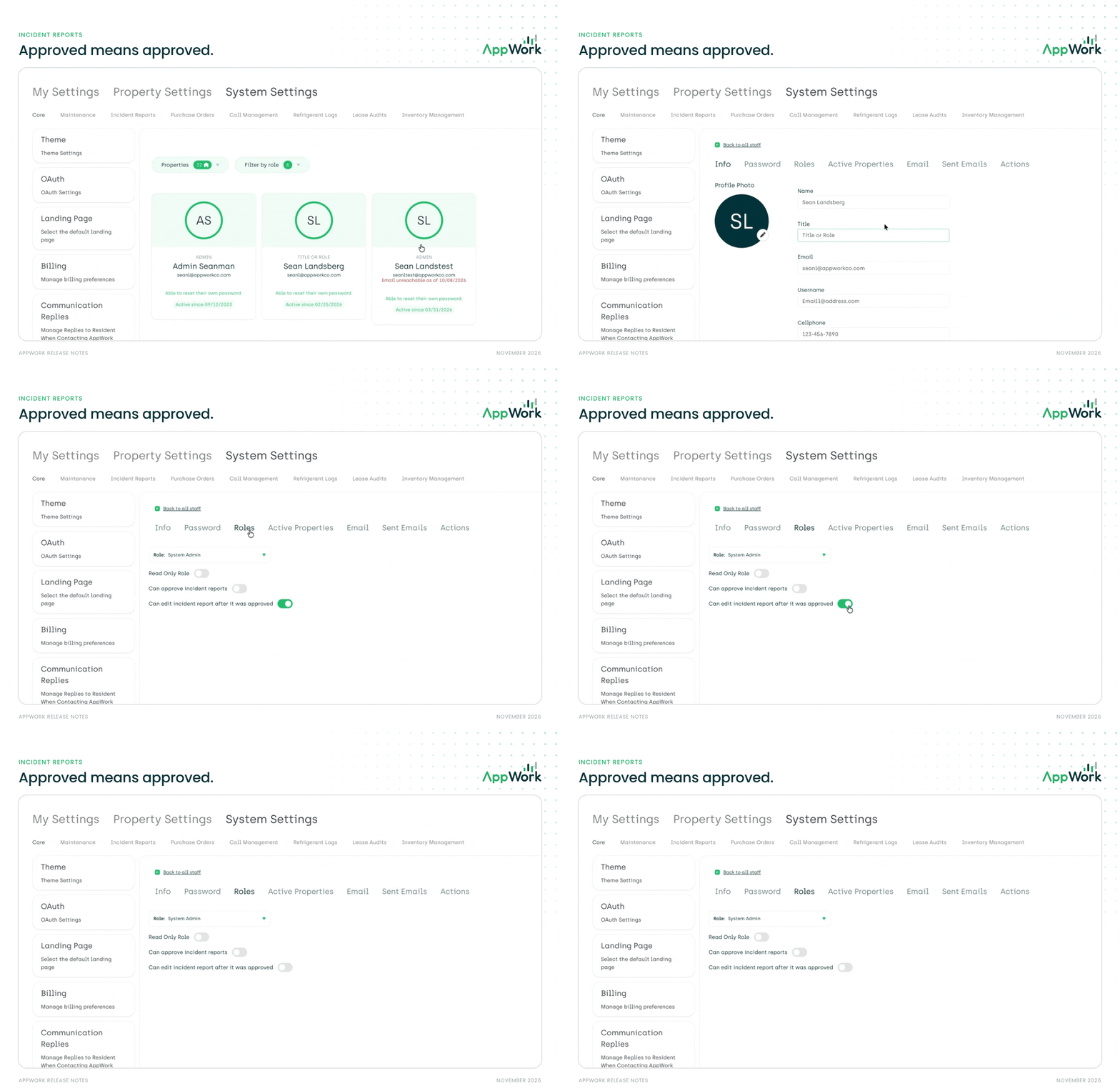
Approved means approved. You can now stop users from editing an incident report once it’s been approved. Turn the permission off for a role and that report is locked for them. The timeline stays open: they can still comment, attach files, and mention people. Existing roles keep edit access until you turn it off.
To change it: Settings > System Settings > Core > Staff > select a user > Roles, then turn off “Can edit incident report after it was approved.”
Scheduling
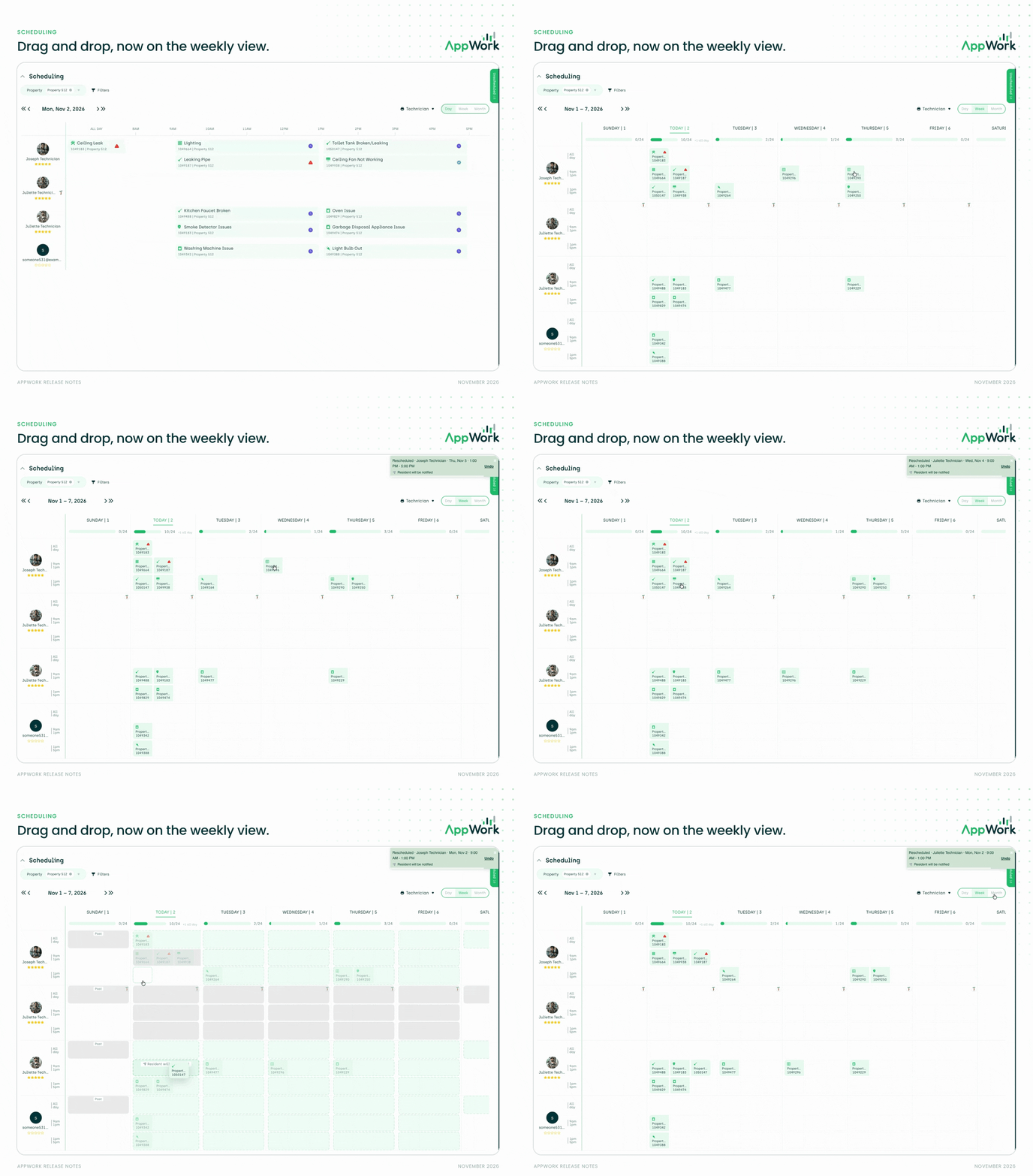
Drag and drop, now on the weekly view. Reschedule or reassign a task straight from the week, same as you already can on the day.
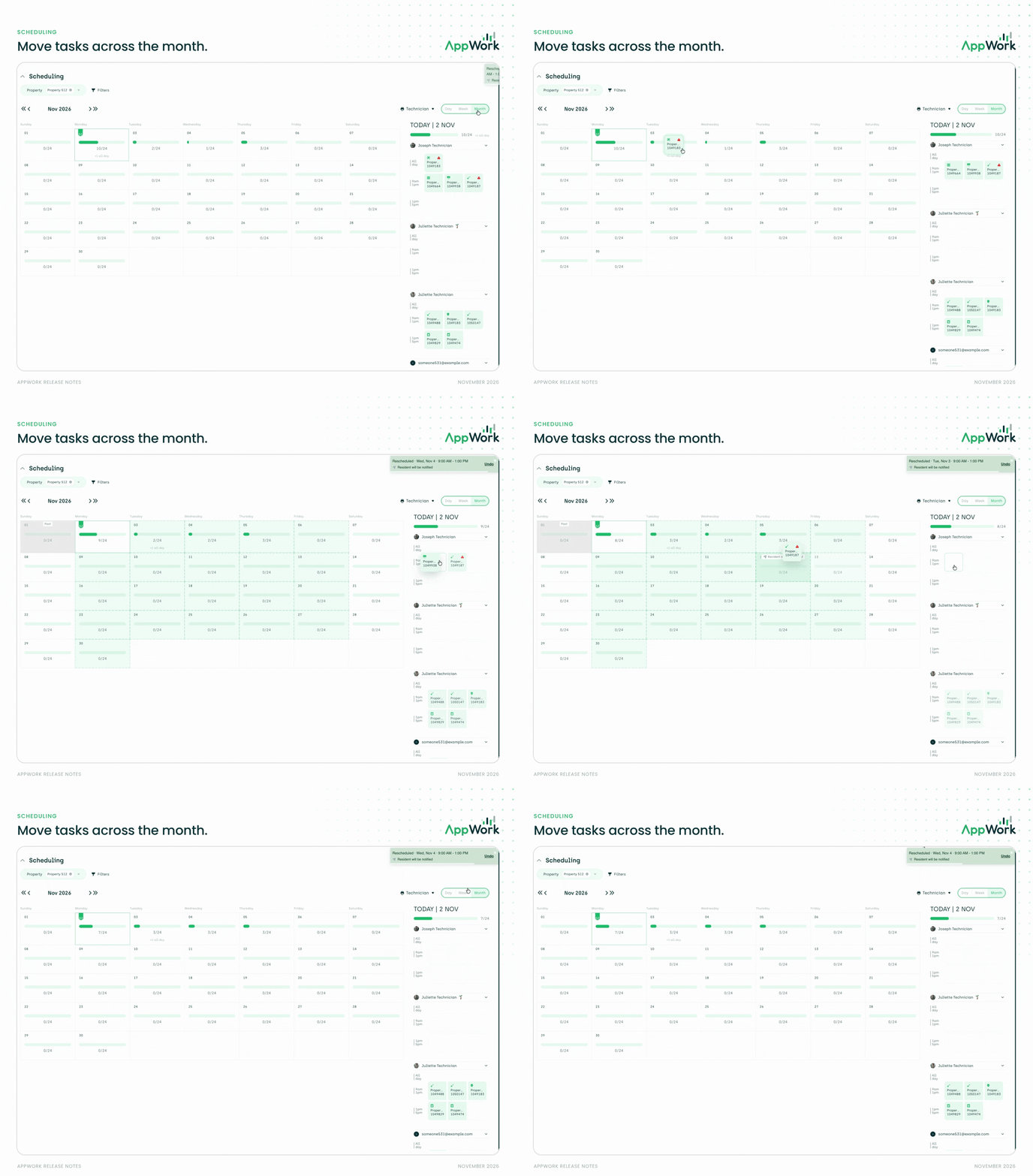
Move tasks across the month. From the monthly view, pull a task out of the daily panel and drop it on a different day. Rescheduled.
System Settings
Staff roles: pick one. Roles moved from checkboxes to a dropdown, so each staff member now has exactly one role. Nothing that needs to be done here - just don't be concerned when you look at it next time and it looks different.