AppWork September 2026 Release Notes and Updates


This release brings entirely new concepts to AppWork: Risk Management for incidents and claims as part of our incident reporting buildout, a rebuilt signature experience for inspections, the missing piece of the Call Management puzzle, and the first look at Asset Intelligence. There is a lot here. Read on.
Incident Management
AppWork just took a major step toward becoming your single stop for risk management, incidents, and claims. This release introduces a new approval process, a new claims tracking system, and a handful of features to support the transition.
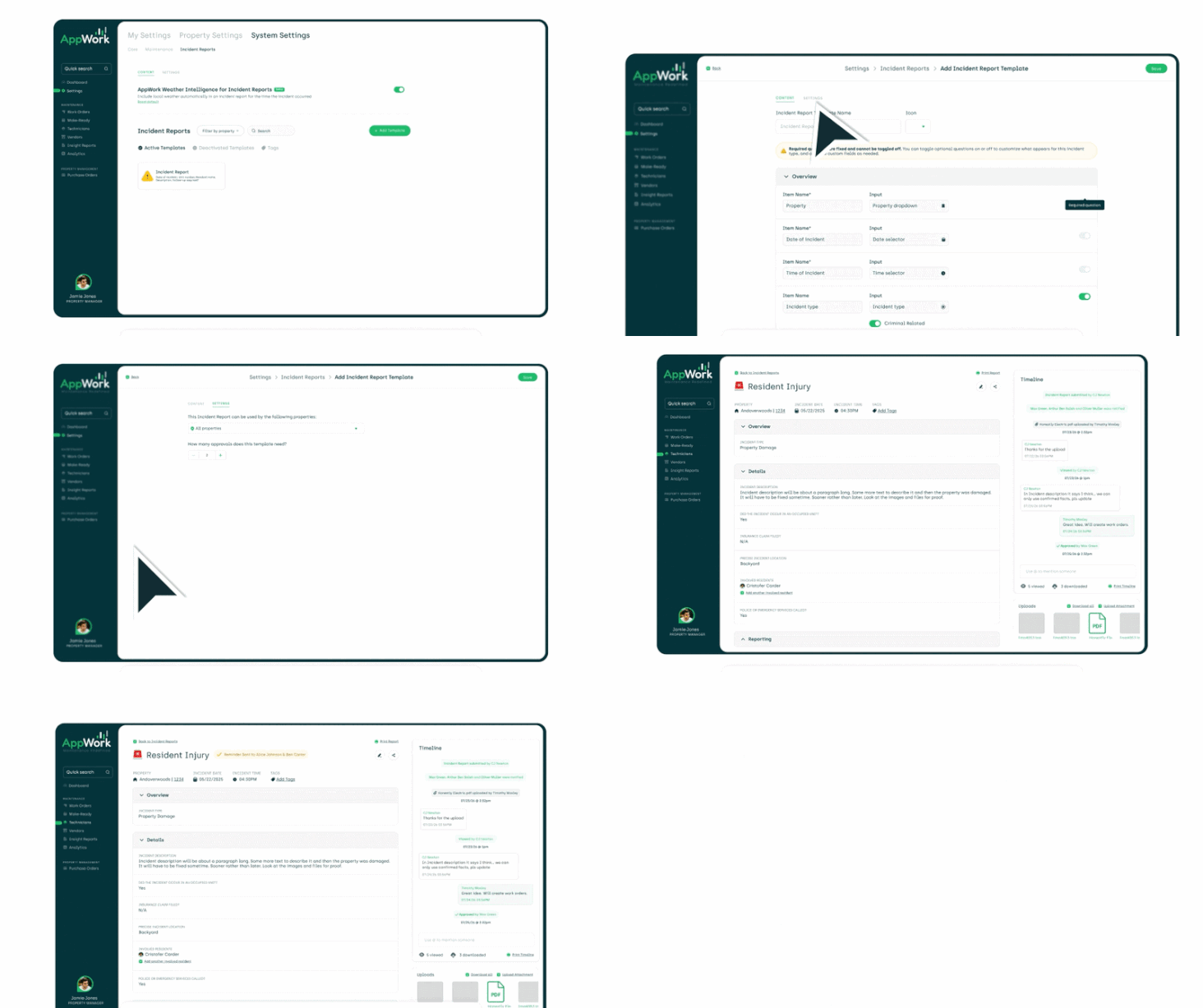
Incident Approvals You can now require sign-off on incident reports before they go out the door. Route a draft to the people who need to approve it. They get notified, review it, and approve. Once every required approval is in, the report moves from Drafts to Submitted.
- As many approvers as you want. Or none. Require zero approvers, five approvers, or whatever number keeps your risk team sleeping at night. You set the rules.
- You decide who holds the stamp. Approval rights live in user permission settings. Turn it on for any admin user you trust to sign off. Leave it off for everyone else.
- No approval rules set up? No waiting. If you haven't configured any approval requirements, incident reports approve themselves automatically. Nothing about your current flow changes until you say so.
- Approve straight from your inbox. Approvers get an email with the draft and can review and approve it right there. No logging in to AppWork. No hunting for the report. Read, click, done.
- Edits reset the clock, but nobody's left guessing. Once at least one person has approved a report, any edit sends it back for full approval again. Anyone who already signed off gets an email that spells out exactly what changed, so they're re-approving the difference, not rereading the whole thing.
Where to find it: Approval permissions: Settings > System Settings > Core > Staff > select a staff member Where to find it: Approval requirements: Settings > System Settings > Incident Reports > edit a template > Settings
Incident Tags You can now add incident tags to each incident report!
Build your own tag library. Tags live at the system settings level, so you decide what they are. Priority levels, open action items, insurance involved, resident notified. Whatever you need to track, make it a tag. We give you the labels. You decide what goes on with them.
One incident, as many tags as it takes. Incidents rarely fit in one box, so we stopped pretending they do. Add multiple tags to any incident report and let it wear all of them at once.
See them and filter by them from the index page. Tags show right on the Incident Reports list, and you can filter by them too. Want every high-priority incident with an open action item? Two clicks. No scrolling, no spreadsheet, no "let me get back to you."
The timeline keeps receipts. Every time a tag gets added or removed, it lands in the incident's timeline. Who tagged what, and when. Nobody has to remember. The record does it for you.
Where to find it: Settings > System Settings > Incident Reports > Incident Tags
Claims Management You can now track the full claim lifecycle inside AppWork. Every incident report carries an incident status. The industry calls this the claim status; in AppWork it's simply the incident status. Statuses are fully customizable, and the defaults are:
- Potential Claim
- Demand Letter Received
- Claim Filed
- Claim Resolved
To change the status, click it at the top of the incident report. Each change creates a timeline event so you can see what changed, when it changed, and who changed it.
Where to find it: Settings > System Settings > Incident Reports > Incident Status

Other Incident Reporting Updates
- You can now cancel a draft incident report. Canceled reports move to the Canceled tab, so you don't lose visibility into them.
- You can now filter the incident report index page by incident status.
Inspections
This release brings big updates to our inspections platform: a new e-signature tool, a cleaner resident experience, and easier template editing.

Inspection Signatures Resident approvals on inspections are now called Inspection Signatures. We rebuilt this feature from the ground up to make collecting signatures on inspections faster and simpler. Here's what's new:
- Anyone can sign. The resident, their parents, a vendor, the manager, or anyone you wish. Designate who should sign and enter their contact information.
- Sign by text or email. Signatures can now be collected by text message in addition to email. Easier for anyone who doesn't check their inbox often.
- Sign straight from the email. Signers no longer have to go to the webpage first. The newly designed email is more informative and includes a Sign button right there.
- Set the signer and send reminders. When completing an inspection, you can now see and set who the signer is, and send a reminder notification with one click. You can do this in real time as soon as the inspection is completed.
- Signature details on the PDF. When an inspection exports to PDF, the e-signature now includes the method used to sign (text or email) along with the signer's phone number or email address.
Where to find it: Settings > System Settings > Maintenance > Inspections > edit a template > Settings > Signature
Resident Inspections We've improved the resident inspection experience by removing capabilities residents didn't need. When you assign an inspection to a resident, they can no longer change the due date or add or edit inspection tags.
Other Inspection Updates
- Editing inspection templates is now easier. You can drag and drop items to change their order in the inspection.
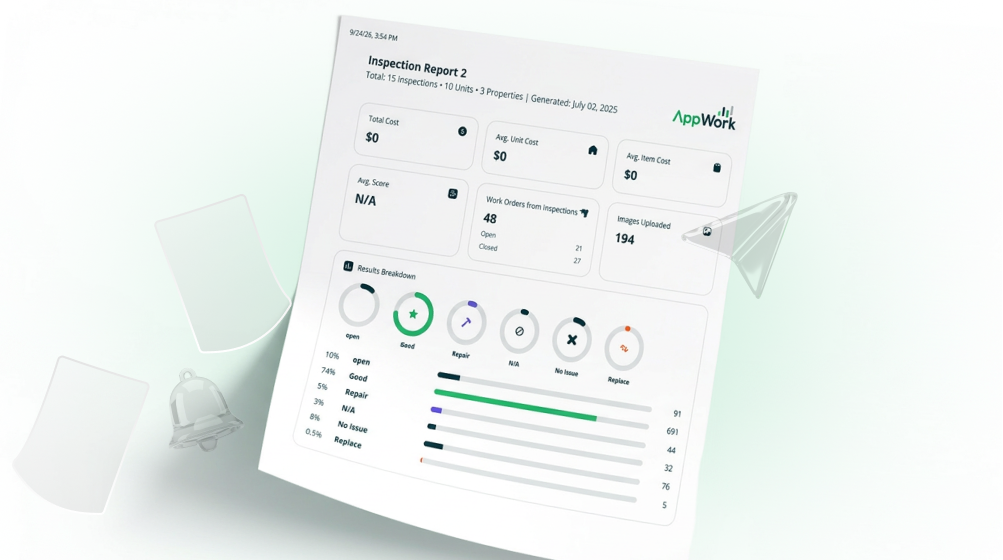
- You can now download the overview page of the Inspection Overview Report as a PDF. A great visual report to share with owners or your asset management team.
Call Management
Our Call Management tool missed a big feature: making sure your team knows about every missed call, and making it easy for them to call back. Fixed.
- Missed call text messages can now be sent to everyone in a call queue when a resident call goes unanswered. The text tells them they missed a call and gives them an easy way to return it.
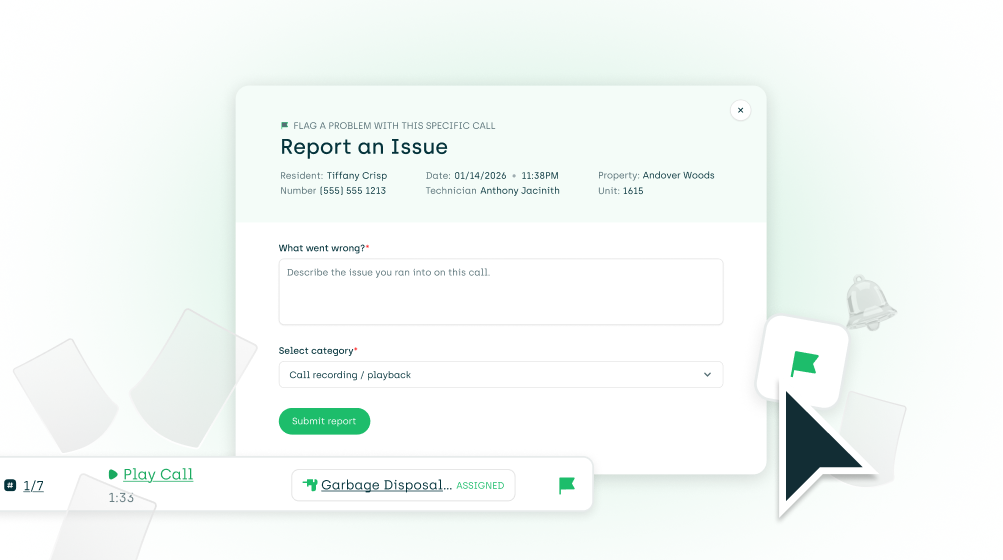
- If you experience a technical issue with a phone call, you can now report it from the call log on the admin dashboard. That sends a note directly to our engineering team with all the metadata they need to investigate quickly.
Where to find it: Missed call texts: Settings > Property Settings > Call Management > click on the call queue > check the "Text" notification > Save Changes
Reports
Canceled Work Order Report Hover over the reason for cancellation to see the full reason without clicking into it.
Work Orders
- You can now filter Work Orders by creation source to see which were created by residents, technicians, inspections, recurring schedules, Call Management, and more.
That's September. Go set up your approvers, add your signers, and start feeding Asset Intelligence. See you next release.