Lease Audit Software for Due Diligence With AppWork V3
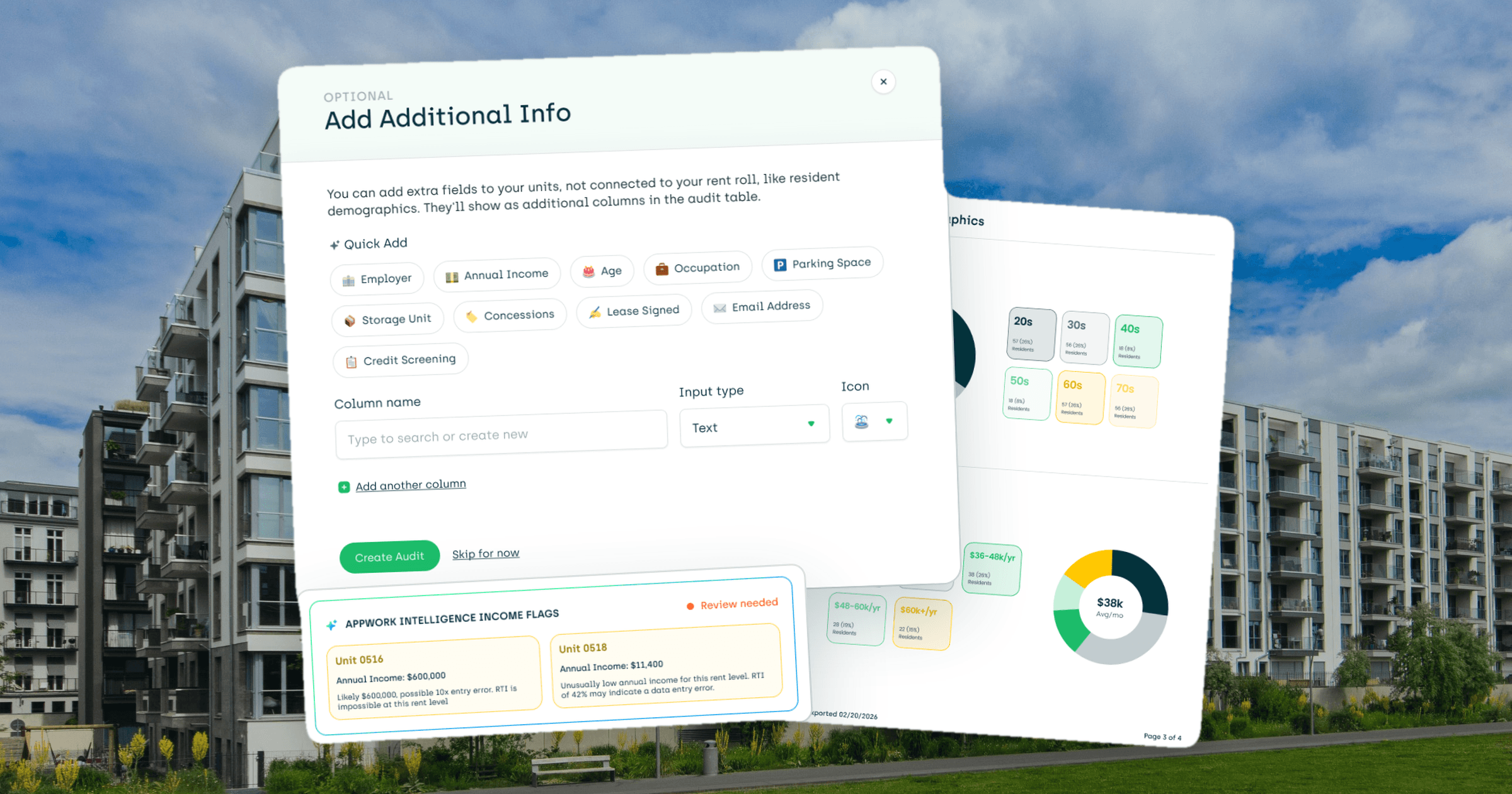

Lease File Audits V3: A Smarter Lease Audit for Multifamily Due Diligence
Lease File Audits V3 is the newest version of AppWork's lease file audit tool, built for multifamily due diligence. A due diligence lease audit has always answered one question: do the signed leases match the seller's rent roll? V3 answers a bigger one. Who actually lives at this property, and what does that tell you about the deal?
When you are buying a property, you have a short due diligence window and a team opening every lease file. V3 is built around a simple idea: while you are already in the file, you should be able to capture anything else you want to know. Employer. Income. Concessions. Credit screening. Whatever matters to your underwriting.
That data then flows into new exports with ready-made charts, and AppWork Intelligence reads through the audit to summarize it and flag anything that looks off. This post walks through each new capability, how it works, and how to get the most from your first V3 audit.
Key takeaways
- Additional Info adds custom fields to a lease file audit, so you can collect data beyond the rent roll.
- Quick Add offers 10 prepopulated due diligence fields, including Employer, Annual Income and Credit Screening.
- Every field can be populated, marked N/A or marked as missing, from the unit card or the list view.
- The Lease Audit Report now charts resident demographics: age range, income, top employers, rent-to-income ratio by unit type and credit screening results.
- AppWork Intelligence summarizes your audit notes and flags numbers that look off.
- V3 is available now to every AppWork client, in the Lease File Audits tab.
What is a lease file audit in due diligence?
A lease file audit is a unit by unit review that compares a property's rent roll against its signed leases. It is sometimes called a lease audit or a rent roll audit. In multifamily due diligence, the buyer runs one before closing to confirm that the income the seller reports is the income the leases actually support.
It matters because the purchase price rests on that income. If the rent roll shows a rent, a fee or a move out date that the lease does not back up, that is revenue you may not collect once you own the property. Find it before closing and you can ask questions or renegotiate. Find it after and it is yours.
If you have run a lease file audit in AppWork, the core workflow will feel familiar. You upload the rent roll, name the audit, and work through the property one unit at a time. For each unit you compare what the rent roll says against what the signed lease says: resident name, move in and move out dates, rent, and recurring charges like pet fees, parking and trash.
Every value gets confirmed or corrected. Units with no lease on file get marked as missing. Along the way the audit keeps a running count of units completed, matches, discrepancies and revenue at risk, and the finished report breaks the discrepancies down by category and by unit.
That workflow is unchanged in V3, and it is still the backbone of the audit. What it could not do was hold anything the rent roll does not carry. If you wanted to record a resident's employer or whether a credit screening was on file, that had to live somewhere else. V3 closes that gap.
Additional Info: custom due diligence fields beyond the rent roll
Additional Info lets you add your own fields to a lease file audit. These fields are not connected to the rent roll. They are questions you want answered for every unit while your team is in the file.
You set them up when you create the audit. After you upload the rent roll and name the audit, a new optional step asks whether you want to add Additional Info. Each field you add has a column name, an input type and an icon, and it shows up as its own column in the audit table.
The input type controls what your team can enter, which keeps the data clean enough to chart later.
| Input type | What it captures | Example |
|---|---|---|
| Text field | Free text | Employer, occupation |
| Number | A numeric value | Annual income, age |
| Yes / No | A simple check | Lease signed |
| Date | A calendar date | Concession end date |
| Dropdown | One choice from a list you define | Credit screening result |
A few practical notes:
- Dropdowns are worth the extra minute. If ten auditors type a result ten different ways, you cannot chart it. A dropdown gives everyone the same short list to pick from.
- You can add as many fields as the deal calls for. Use "Add another column" to keep going.
- The step is optional. If all you need is the classic rent roll comparison, choose "Skip for now" and the audit works exactly as it did before.
- Icons make columns easy to spot. Pick one for each field so your team can find it quickly in a wide table.

Quick Add: 10 common due diligence fields, ready to go
Most due diligence teams ask for the same handful of data points, so we built them in. Quick Add gives you 10 prepopulated fields you can add with one click during setup:
- Employer
- Annual Income
- Age
- Occupation
- Parking Space
- Storage Unit
- Concessions
- Lease Signed
- Email Address
- Credit Screening
Each one arrives with its name and input type already set. Credit Screening is a good example. Click it and it comes in as a dropdown with four options already filled in: Approved, Conditional, Denied / Overridden, and No Screening Found. You can keep those, rename them, or add your own.
Quick Add and custom fields work together. Start with the Quick Add fields that fit the deal, then add custom columns for anything specific to this property, like an amenity fee or a renewal offer.
How to capture the data during a lease file audit
Once the audit is created, your Additional Info fields show up in two places.
On the unit card. Open any unit and you will see the familiar Lease Audit section, with a new Additional Info section below it listing every field you set up. This is where most of the work happens, because your team already has the lease file open.
In the list view. Each field is also a column in the audit table, so you can scan a whole property at a glance and see what has been filled in.
Every field can end up in one of three states:
| State | What it means | When to use it |
|---|---|---|
| Populated | You entered a value | The file had the answer |
| N/A | The question does not apply to this unit | No parking space is assigned, so there is nothing to record |
| Missing | The answer should be in the file and is not | The file has no income documentation or no screening report |
The difference between N/A and Missing matters more than it looks. N/A closes the question. Missing is a finding. A property where a large share of files have no credit screening on record is telling you something about how it was leased, and you want that to show up in your report instead of disappearing into a blank cell.
Additional Info fields also count toward the unit's progress. The "values verified" counter at the top of the unit card includes them, so a unit is not finished until every question has an answer or a reason it does not have one.

What the new Lease Audit Report shows
Collecting the data is half the job. The other half is getting it in front of the people making the decision, in a form they can read in a minute.
The Lease Audit Report export keeps everything it had before: the discrepancy breakdown by category and the unit by unit detail with notes. V3 adds a Resident Demographics section that turns your Additional Info into charts.
| Chart | What it shows | Why it matters in due diligence |
|---|---|---|
| Age range per unit | Residents grouped by decade, with the average age | Tells you who the property really serves, which shapes your amenity and renovation plans |
| Annual income per unit | Residents grouped into income bands, with the average | Shows how much room the resident base has to absorb a rent increase |
| Top employers | The employers that appear most often across the rent roll | Reveals concentration risk if one employer accounts for a large share of your residents |
| Rent-to-income ratio by unit type | Average ratio for each floor plan, with the average rent | Highlights any unit type that sits above the 30% qualification threshold |
| Credit screening results | The share of residents in each screening outcome | Shows how consistently the current operator screened applicants |
The rent-to-income chart deserves a second look. It draws a line at 30% and colors any unit type above it, so you can see in one glance whether a specific floor plan is stretched.
The charts are built from what you collect, so the fields you choose at setup decide what your report can show.

How AppWork Intelligence reviews your lease audit
A full property audit produces a lot of notes and a lot of numbers, entered by several people over several days. AppWork Intelligence reads all of it and adds two things to your report.
A summary of your notes
Auditors leave notes as they go: a concession confirmed by an addendum, or paperwork that was promised and never arrived. On a large property that can be dozens of notes spread across the report.
AppWork Intelligence writes a short summary of what those notes say, tells you how many notes it was generated from, and pulls out the recurring themes, such as "Concession confirmed" or "Documentation pending". You get the story of the audit in one paragraph before you read a single unit.
Flags on numbers that look off
Manual entry means the occasional typo, and one extra zero in an income field can quietly distort your averages. AppWork Intelligence checks the numbers against each other and flags the ones that do not add up. For example:
- An annual income that makes the rent-to-income ratio implausible for that unit, which usually points to an extra zero.
- An income that is unusually low for the rent level, which may be a data entry error or may be a real qualification concern.
Each flag names the unit, shows the value, and explains why it was flagged, under a clear "Review needed" label.
One thing to be clear about: a flag is a prompt to look, not a verdict. AppWork Intelligence tells you where to check. Your team decides what is right.

Best practices for a due diligence lease file audit
The features are simple to use. The audits that get the most from them tend to share a few habits.
Decide your questions before you start. Sit down with whoever is underwriting the deal and agree on what you want to know about every unit. Opening every file once is the expensive part, so it pays to ask everything on the first pass.
Choose structured inputs for anything you want to chart. Free text is flexible, and it is hard to summarize. If you want to see a breakdown later, use a number or a dropdown.
Agree on N/A versus Missing. Take two minutes with your team before the audit begins so everyone marks the same situation the same way. Your report is only as consistent as your auditors.
Write notes for someone who was not in the room. The note summary can only work with what your team writes down. A note like "RUBS discrepancy confirmed with leasing, needs lease amendment before renewal" is far more useful than "checked".
Collect what you need, and handle it with care. Additional Info can hold personal details about residents, including age and income. Use that data to understand the property as a whole, limit it to what your due diligence calls for, and check with your counsel on how fair housing and privacy rules apply in the states where you operate.
How to get Lease File Audits V3
Lease File Audits V3 is live for everyone. You will find it in the Lease File Audits tab in the AppWork navigation bar. Start a new audit, and the Additional Info step will be waiting for you right after you name it.
Like almost everything we ship, this release started with feedback from the people using the product. If you run an audit on V3 and find yourself wishing for a field or a chart that is not there yet, tell us. That is how the next version gets built.
Want a walkthrough before your next acquisition? Reach out to your AppWork team and we will take you through it.
Frequently asked questions
What is a lease file audit?
A lease file audit is a unit by unit review that compares a property's rent roll against its signed leases. It confirms that resident names, lease dates, rent and recurring charges on the rent roll match what each lease says.
Why do buyers run a lease file audit during due diligence?
Buyers run a lease file audit to confirm the income behind the purchase price. Any rent or fee on the rent roll that a signed lease does not support is revenue at risk, and due diligence is the time to find it.
What is new in Lease File Audits V3?
V3 adds Additional Info, which lets you collect custom data beyond the rent roll. It also adds Quick Add fields, new charts in the Lease Audit Report, and AppWork Intelligence summaries and flags.
What data can I collect beyond the rent roll?
You can collect anything you define as a field. Quick Add includes Employer, Annual Income, Age, Occupation, Parking Space, Storage Unit, Concessions, Lease Signed, Email Address and Credit Screening, and you can create your own custom fields.
What is the difference between N/A and Missing?
N/A means the question does not apply to that unit. Missing means the answer should be in the lease file and is not. Missing items are findings and show up in your audit.
What charts does the Lease Audit Report include?
The report charts age range per unit, annual income per unit, top employers, rent-to-income ratio by unit type and credit screening results, alongside the existing discrepancy breakdown.
How does AppWork Intelligence help with a lease audit?
AppWork Intelligence writes a summary of the notes your auditors left, pulls out recurring themes, and flags values that look wrong, such as an income with an extra zero. Your team reviews each flag and decides what is correct.
Who can use Lease File Audits V3?
Lease File Audits V3 is available now to every AppWork client. It is in the Lease File Audits tab in the AppWork navigation bar.

Sean has dedicated 10 years to the multifamily industry, most recently serving as SVP of Operations. With a real-world understanding of property managers' needs, he guides the development of AppWork. He is responsible for overseeing the day-to-day running of the company.